ArtCAM Software Training in Dubai — Bright Future Training Institute

Engineering Courses

ArtCAM Software Training in Dubai

Autodesk, QAQC, Dubai, British Council and EC-Council

Career-focused training in Dubai

ArtCAM Software Training in Dubai

Learn legacy ArtCAM workflows for vector design, 3D relief modelling, CNC toolpaths, simulation and machine-ready output with practical training in Dubai.

4.7/5 · Google Reviews15,561 students enrolled
FlexibleSchedule
Online &Classroom
ExpertTrainers
CourseCertificate
01

Course

Overview

Learn Artistic CAD/CAM and CNC Relief Workflows

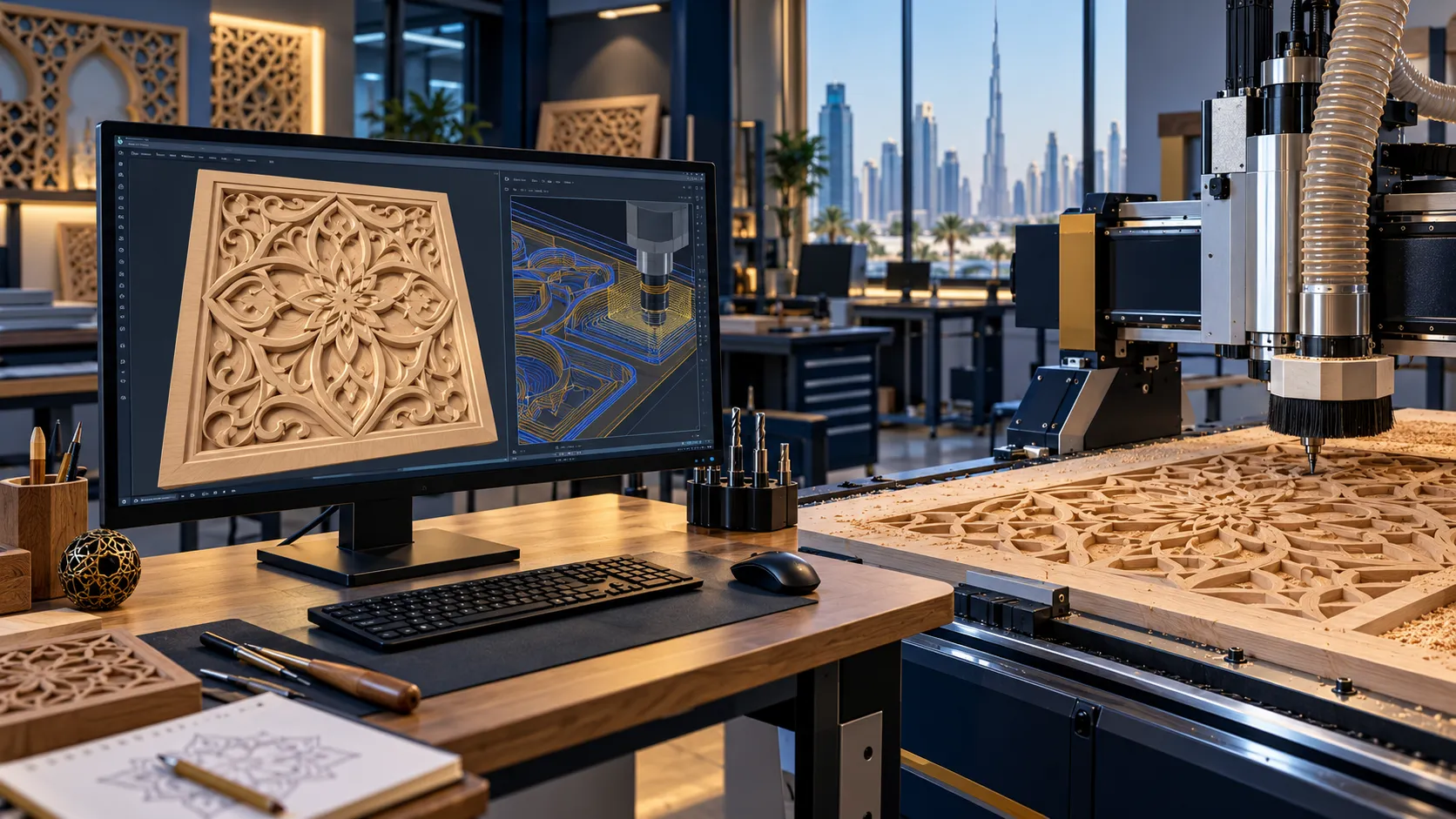
Bright Future Training Institute’s ArtCAM Software Training in Dubai develops the design and machining skills used to turn vector artwork, text and images into decorative reliefs and CNC-ready toolpaths. The learning path connects each stage of the workflow: preparing artwork, building relief geometry, selecting cutters, defining machining parameters, simulating the result and producing output for a compatible CNC machine.

This is practical legacy-software training for workshops and learners who already have lawful access to an ArtCAM installation. It is suitable for CNC operators, woodworkers, sign makers, furniture and interior-production teams, jewellery and engraving professionals, engineering students, designers and business owners who need to understand an established relief-modelling workflow.

Important Software Status

Autodesk discontinued ArtCAM in 2018 and no longer sells new subscriptions or provides product updates. Existing perpetual-license holders may continue using their licensed installation. Bright Future does not sell or include an ArtCAM licence. Read the official Autodesk ArtCAM discontinuation notice before enrolling.

The design principles covered in this course—clean vectors, relief construction, cutter selection, toolpath strategy, simulation and post-processing—remain useful in modern artistic CAD/CAM environments. Ask the admissions team whether your planned software version, licence and machine workflow can be supported before booking.

What You Will Be Able to Do

By the end of the training, a successful learner should be able to:

  • Navigate an existing ArtCAM installation and organise models, layers and project files.
  • Create, import, clean and edit vectors for engraving, carving and profile cutting.
  • Convert suitable bitmap artwork into manageable vector geometry.
  • Build low-relief forms from closed vectors, combine relief layers and refine surfaces.
  • Prepare lettering, logos, patterns, textures and decorative panels for CNC work.
  • Select suitable end mills, ball-nose cutters and V-bits for different operations.
  • Configure profile, pocket, engraving, V-carving, roughing and finishing toolpaths.
  • Set material dimensions, machining boundaries, safe heights, feeds, speeds and stepovers.
  • Simulate toolpaths and investigate collisions, gouges, uncut areas or inefficient motion.
  • Save machine-ready output only after verifying the selected post-processor and CNC requirements.
  • Document a complete design-to-toolpath project for a technical portfolio or workshop process.

A Complete Design-to-CNC Learning Path

Artistic CNC work combines visual design with manufacturing judgement. A beautiful relief is not automatically machinable, and a valid toolpath is not automatically safe or efficient. The course therefore teaches the workflow as a connected process rather than a collection of commands.

1. Build Reliable Vector Artwork

Begin with model dimensions, units and material size. Create geometry using lines, arcs, curves, shapes and text, then edit nodes, join open contours, remove duplicates and check direction. You will learn why tiny gaps, overlapping vectors and poorly traced curves can cause failed pockets, unexpected profiles or excessive machining time.

Exercises include preparing a nameplate, cleaning an imported logo and converting text into editable curves. The focus is not only visual accuracy but also closed, orderly geometry that can drive predictable reliefs and toolpaths.

2. Turn 2D Geometry into Relief Forms

Use vector boundaries to create raised, recessed, domed, angled and blended shapes. Work with relief layers so individual design elements can be edited and combined without destroying the complete model. Explore how height, angle, profile and blending choices affect both appearance and manufacturability.

You will also practise importing appropriate bitmap artwork, controlling depth and cleaning the result. Not every photograph makes a usable relief; contrast, background detail and depth interpretation must be evaluated before time is invested in machining.

3. Sculpt and Refine the Surface

Relief-editing tools help smooth transitions, remove unwanted marks and strengthen important details. Learners compare deposit, erase, smooth and smudge-style operations and examine how excessive smoothing can remove definition. Texture exercises show how repeated patterns can add visual interest without creating impossible cutter access.

4. Plan the Machining Strategy

Choose operations based on the model, material and required finish. A typical panel may need area clearance, profile cutting, V-carving, roughing and a ball-nose finishing pass. You will compare climb and conventional cutting, raster and offset finishing, tool diameter, stepover, stepdown, stock allowance and boundary selection.

The course does not prescribe one feed or spindle speed for every job. Appropriate values depend on the machine, cutter, material, workholding and manufacturer guidance. Learners practise the reasoning needed to choose conservative starting parameters and verify them in a supervised environment.

5. Simulate Before Producing Output

Simulation is used to inspect the likely result before a programme reaches a machine. Check for gouges, missed regions, unexpected plunges, excessive air cutting, poor detail and unsuitable operation order. Compare roughing and finishing results and revise the strategy when the simulation reveals a problem.

6. Prepare Output for a Compatible CNC Machine

Post-processing converts calculated toolpaths into instructions intended for a particular machine controller. Selecting an incorrect post-processor can create unusable or unsafe output. The training explains file organisation, tool numbering, datum conventions and verification responsibilities. Actual machine setup and operation must follow the machine manufacturer’s documentation, workplace procedures and competent supervision.

Practical ArtCAM Projects

The exercises progress from controlled design tasks to an integrated capstone project.

Engraved Nameplate and Signage Layout

Create a balanced layout using text, borders and a simple logo. Clean the vectors, choose an engraving or V-carving strategy, define the material and simulate the operation. The review considers readability, cutter access, depth and finishing quality.

Decorative Relief Panel

Build a layered relief using vector-defined forms, textures and surface refinement. Plan separate roughing and finishing operations, evaluate the expected machining time and inspect the simulated surface for lost detail or uncut areas.

Image-Derived Relief Study

Prepare a suitable high-contrast image, generate relief information and refine its depth. Document which areas translate well, which require manual correction and why some visual details may not be suitable for carving.

Capstone: Design to Verified Toolpath

Develop a sign, furniture feature, decorative panel, mould concept, jewellery element or custom workshop project. The final submission includes cleaned artwork, relief layers, material setup, cutter choices, toolpath sequence, simulation evidence and a checklist for machine-specific verification.

Who Should Join?

This course is relevant to:

  • CNC router and engraving-machine operators using an existing ArtCAM workflow.
  • Woodworking, furniture, joinery and decorative-panel professionals.
  • Sign makers, nameplate producers and advertising-production teams.
  • Interior-production and fit-out designers preparing carved features.
  • Jewellery, craft, mould and die professionals working with artistic geometry.
  • Engineering, product-design and manufacturing students.
  • Workshop owners who need to review design and toolpath preparation.
  • Existing ArtCAM users planning to document or transfer their relief-modelling knowledge.

No previous ArtCAM experience is required for the introductory exercises. Basic computer confidence and an understanding of workshop measurements are helpful. Learners who already use SolidWorks, AutoCAD 2D or another CAD platform can connect their existing drawing skills to artistic CAM preparation.

Course Delivery and Requirements

Training may be arranged as classroom or live instructor-led sessions depending on current batch availability. Contact Bright Future to confirm the schedule, duration, workstation arrangement and whether your intended ArtCAM version can be used.

Before joining, confirm that you have:

  • Lawful access to a compatible ArtCAM installation if software practice is required outside the centre.
  • A Windows computer that supports the installed legacy version.
  • Sample artwork or a project brief if you want trainer feedback on a particular workflow.
  • Machine, controller and post-processor information for any machine-specific discussion.
  • Appropriate supervision for physical CNC operation.

Software licences, CNC hardware, cutters, materials and external certification examinations are not assumed to be included. Ask admissions for the written inclusions applicable to your batch.

Skills for CNC Design and Production Work

The course can support practical tasks in woodworking, furniture manufacturing, interior decoration, signage, engraving, custom gifts, mould concepts, jewellery and decorative production. Relevant roles may include CNC design assistant, relief modeller, engraving designer, router-programming assistant, workshop CAD/CAM operator or production-design support.

Training alone does not guarantee employment, business results or machine competence. Outcomes depend on your portfolio, broader technical knowledge, workplace experience, software access and the requirements of each employer or client.

Why Choose Bright Future Training Institute?

  • Original project work: practise complete relief and toolpath workflows instead of only watching commands.
  • Engineering trainer support: Mr Obdha guides learners through structured CAD/CAM decisions, documentation and troubleshooting.
  • Transparent software guidance: the course clearly explains ArtCAM’s discontinued status and does not imply that new Autodesk licences are available.
  • Machine-aware teaching: toolpaths are discussed in relation to cutters, materials, workholding, controllers and safe verification.
  • Flexible enquiries: ask about current weekday, evening, weekend, classroom and online arrangements.
  • Connected study routes: explore more engineering courses, 3D printing and additive manufacturing or 3ds Max training based on your goals.

Enquire About ArtCAM Training in Dubai

Tell the admissions team which ArtCAM version, CNC machine and type of work you use. Bright Future Training Institute will confirm whether the current training arrangement matches your needs and explain the available schedule, learning format and course inclusions.

Call or WhatsApp +971 54 373 3394, or submit the enquiry form to request current ArtCAM course information.

02

Course

Curriculum

ArtCAM Software Training Curriculum

Module 1: ArtCAM Context and Project Setup

  • ArtCAM applications in relief carving, signage, furniture, jewellery and decorative manufacturing
  • Autodesk discontinuation status and responsible use of licensed legacy installations
  • Interface, project tree, model view and workspace navigation
  • Model dimensions, units, resolution and material block setup
  • 2D vectors, bitmap artwork, reliefs and toolpaths in the production workflow
  • File organisation, backups and version-aware project management

Module 2: Vector Drawing Fundamentals

  • Lines, arcs, curves, rectangles, circles, polygons and free-form geometry
  • Text creation, spacing and conversion to editable curves
  • Snapping, alignment, duplication, mirroring and transformation
  • Node editing and curve control
  • Joining open contours and closing gaps
  • Layer-based organisation for complex artwork

Module 3: Imported Artwork and Vector Cleanup

  • Importing common vector and bitmap formats supported by the installed version
  • Bitmap tracing and manual correction
  • Removing duplicate, overlapping and unnecessary geometry
  • Simplifying excessive nodes without losing the intended shape
  • Checking contours before relief creation or machining
  • Preparing logos, motifs and production artwork

Module 4: Relief Modelling Fundamentals

  • Relief layers and layer groups
  • Creating raised, recessed, domed and angled forms from closed vectors
  • Add, subtract, merge and highest/lowest combination concepts
  • Height, profile and angle control
  • Building low-relief components in a logical sequence
  • Inspecting shading and surface transitions

Module 5: Advanced Relief Construction

  • Extruded, spun, turned and swept-form concepts
  • Two-rail sweep and decorative border workflows
  • Pasting reliefs along curves
  • Texture creation and repeated relief elements
  • Relief transformation, scaling and positioning
  • Positive and negative forms for mould or engraving concepts

Module 6: Bitmap-to-Relief and Sculpting

  • Selecting images suitable for relief conversion
  • Contrast, background cleanup and depth interpretation
  • Creating relief information from grayscale or bitmap artwork
  • Deposit, erase, smooth and smudge-style sculpting operations
  • Preserving important detail while reducing noise
  • Evaluating whether an image can be machined successfully

Module 7: Text, Signage and Engraving Design

  • Straight, curved and path-based lettering
  • Converting fonts to vectors and checking contours
  • Raised, recessed and engraved text treatments
  • Borders, logos and balanced sign layouts
  • V-bit engraving preparation
  • Nameplate and custom-sign exercise

Module 8: 2D Toolpaths

  • Material setup, datum concepts and machining boundaries
  • Profile cutting inside, outside and on a vector
  • Pocket and area-clearance strategies
  • Engraving and V-carving operations
  • Drilling and repeated-hole workflows
  • Tabs, bridges, ramps and safe-height concepts

Module 9: 3D Roughing and Finishing

  • Stock allowance and roughing objectives
  • Z-level and other available roughing strategies
  • Raster, offset and along-vector finishing approaches
  • Ball-nose cutter selection and surface-quality trade-offs
  • Stepover, stepdown and boundary control
  • Rest machining and detail-access considerations

Module 10: Cutters and Machining Parameters

  • End mills, ball-nose cutters, V-bits and tapered cutters
  • Tool diameter, flute length and reach
  • Feed rate, spindle speed, depth of cut and plunge settings
  • Material, machine rigidity and workholding considerations
  • Tool-library review and controlled parameter changes
  • Using manufacturer and workplace guidance instead of generic values

Module 11: Simulation and Quality Review

  • Calculating and ordering toolpaths
  • Simulating individual operations and the complete job
  • Checking for gouges, uncut regions, collisions and inefficient air cutting
  • Comparing cutter or stepover choices
  • Reviewing expected detail, finish and machining time
  • Creating a pre-output verification checklist

Module 12: Post-Processing and CNC Output

  • Purpose and limits of a post-processor
  • Matching output to the machine controller
  • Tool numbering, programme structure and datum conventions
  • Saving toolpaths and maintaining revision control
  • Machine-side verification and safe dry-run principles
  • Responsibilities that remain outside software simulation

Module 13: Practical Projects and Capstone

  • Engraved nameplate or signage layout
  • Layered decorative relief panel
  • Image-derived relief study
  • Roughing and finishing strategy comparison
  • Capstone design from source artwork to verified simulated toolpaths
  • Portfolio presentation, documentation and instructor feedback
03

Course

Instructor

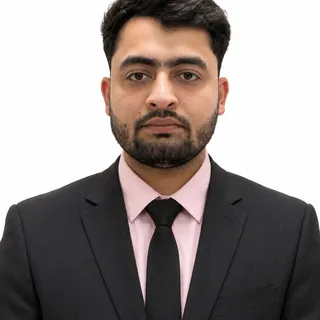
Mr Obdha

Course instructor

Mr Obdha

Engineering Design and BIM Trainer

Mr Obdha focuses on applied engineering design, coordinated BIM workflows, technical documentation, and project-based software practice.

Training focus

  • CAD and BIM project workflows
  • AutoCAD and Autodesk platforms
  • Revit Architecture, Structure and MEP
  • Engineering documentation and coordination
04

Course

FAQs

ArtCAM Software Training FAQs

Is ArtCAM still available from Autodesk?

No. Autodesk discontinued ArtCAM in 2018, ended new subscription sales and stopped product support. Existing perpetual-license holders may continue using their licensed installation. Bright Future does not sell or include an ArtCAM licence.

Why learn ArtCAM if the software is discontinued?

Some established CNC workshops still use licensed ArtCAM installations and need staff who understand their existing files and production workflow. Vector cleanup, relief construction, toolpath planning and simulation are also transferable CAD/CAM skills. Before enrolling, confirm that legacy ArtCAM is relevant to your workplace or learning goal.

Is the ArtCAM course suitable for beginners?

Yes. The learning path begins with project setup, interface navigation and vector drawing before progressing to reliefs and toolpaths. Basic computer confidence and comfort with measurements are helpful. CNC machine operation requires separate supervised practice and workplace-specific safety instruction.

What will I learn in ArtCAM training?

You will learn vector drawing and cleanup, bitmap tracing, relief modelling, surface refinement, text and signage design, cutter selection, 2D and 3D toolpaths, simulation, error review and the principles of machine-specific post-processing.

Does the course include an ArtCAM licence?

No. New Autodesk ArtCAM licences are not available because the product is discontinued. Ask admissions what software access is available during the selected batch and confirm your own lawful software access for practice outside the training centre.

Will I operate a CNC machine during the course?

The core course focuses on design, relief modelling, toolpath strategy and simulation. Any physical machine access depends on the current training arrangement, available equipment and safety controls. Confirm this in writing before enrolling. Machine operation must follow manufacturer guidance and competent supervision.

Which projects are included?

Planned exercises include an engraved nameplate or sign, a layered decorative relief, an image-derived relief study and a capstone project that documents the workflow from source artwork to verified simulated toolpaths. Exact projects may be adjusted to suit the batch and available software version.

Can I learn online?

Classroom and live online options may be available depending on the current schedule. Online learners need a suitable Windows computer and lawful access to a compatible installation. Contact Bright Future to confirm delivery options and technical requirements.

Who is the trainer for this engineering course?

Mr Obdha is assigned to guide the ArtCAM engineering workflow, including structured design practice, relief preparation, toolpath reasoning and project review. Trainer availability can vary by batch, so confirm the final schedule with admissions.

Where is Bright Future Training Institute located?

The training centre is in Suite 404, Fourth Floor, NBQ Building, Bank Street, Bur Dubai, close to BurJuman Metro Station. Open the Location tab for the map and travel guidance.

Will I receive a course completion certificate?

Ask admissions to confirm the current attendance, project and assessment requirements for your batch. Any Bright Future completion document is separate from Autodesk certification and does not imply current Autodesk endorsement of this discontinued product.

05

Course

Location

Conveniently Located ArtCAM Software Training in Dubai

Our main training centre is in Bur Dubai, near BurJuman Metro Station and accessible from across the city. Join us there for ArtCAM Software Training, or contact admissions to ask about online options.

Our Bur Dubai Training Centre

Address:
Bright Future Training Institute
Suite 404, Fourth Floor, NBQ Building, Bank Street, Bur Dubai, Dubai, UAE

Located in the heart of Bur Dubai, our centre is near BurJuman Metro Station and served by public transport. If you plan to drive, check parking availability before your visit.

We Serve Students From All Dubai Areas

Students come from across Dubai for ArtCAM Software Training. Our classroom training takes place in Bur Dubai; ask our admissions team about current schedules and remote-learning availability.

ArtCAM Software Training near Umm Suqeim

Students from Umm Suqeim can reach our Bur Dubai centre by road or ask about online study options.

ArtCAM Software Training near Dubai Marina

Dubai Marina learners can travel to our Bank Street centre or enquire about remote learning.

ArtCAM Software Training near JVC

Learners in Jumeirah Village Circle can contact admissions for current class schedules and online options.

ArtCAM Software Training near Downtown Dubai

Downtown Dubai professionals can ask about class times that fit around their workday.

ArtCAM Software Training near Deira

Deira students can connect to Bur Dubai by metro or road to attend in-person classes.

ArtCAM Software Training near Business Bay

Business Bay learners can contact us about the next available classroom or online batch.

ArtCAM Software Training near Karama

Karama is close to our Bur Dubai training centre on Bank Street.

ArtCAM Software Training near Sharjah

Sharjah residents can ask about suitable classroom schedules or online learning.

ArtCAM Software Training near Jumeirah

Jumeirah students can visit our Bur Dubai centre or enquire about online options.